Zigbee or WiFi Smart Plug 16A/20A EU Smart Socket With Power Monitoring Timing Function Voice Control Via Tuya Alexa Google Home
20A WIFI / ZIGBEE 20A / 100-240V|1PCS
€12,50
Preço de saldo
€12,50
Preço normal
€12,50
Saltar para a informação do produto


Zigbee or WiFi Smart Plug 16A/20A EU Smart Socket With Power Monitoring Timing Function Voice Control Via Tuya Alexa Google Home
€12,50
Preço de saldo
€12,50
Preço normal
€12,50
SPECIFICATIONS
Application: Residential / General-Purpose
Brand Name: shine-tale
Certification: CE
Choice: yes
EU LVD Voltage: High voltage: Above 50Vac or 75Vdc
Extension Cable Length: None
Grounding: Standard Grounding
High-concerned chemical: None
Is Smart Device: Yes
Material: Plastic
Origin: Mainland China
Product parameters: Eurocode 16/20A
Product size: 50*50*84mm
Weight: 0.09kg
Input voltage: AC100-240V 50/60Hz.
WIFI standard: 2.4GHz 802.11 b/g/n g/n.
Indicator light: blue light indicator switch and distribution network
Shell material: PC+ABS fire rating V0
Working temperature: -20-50℃
Certification standard: CE/ROHS
Graffiti smart or smart life APP can be remotely controlled by mobile phone by connecting with WiFi router.
Support Alexa, Google Home, Tmall Elf Xiaoai and other intelligent voice control.
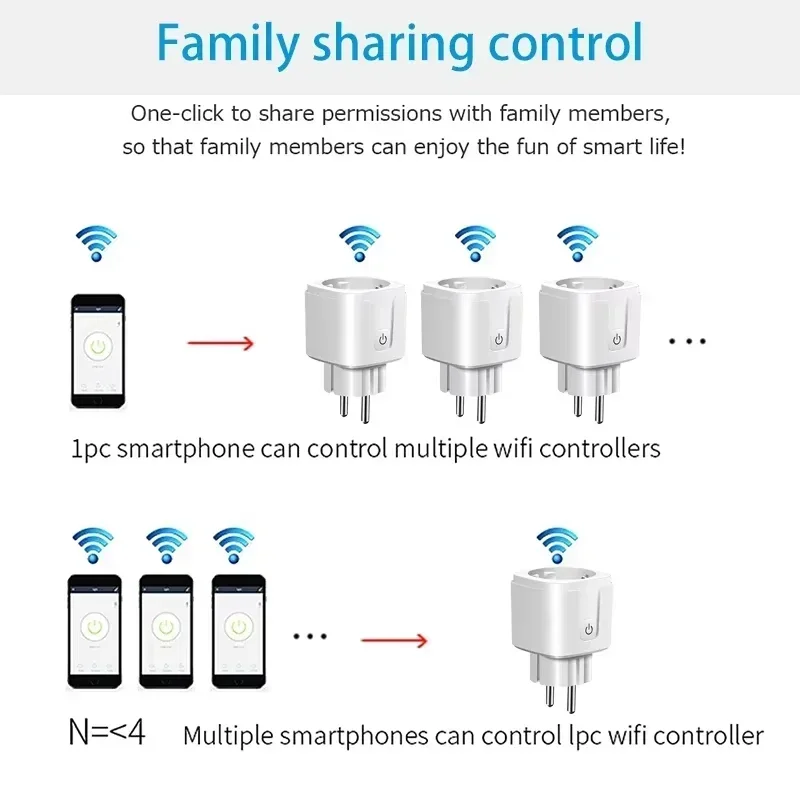
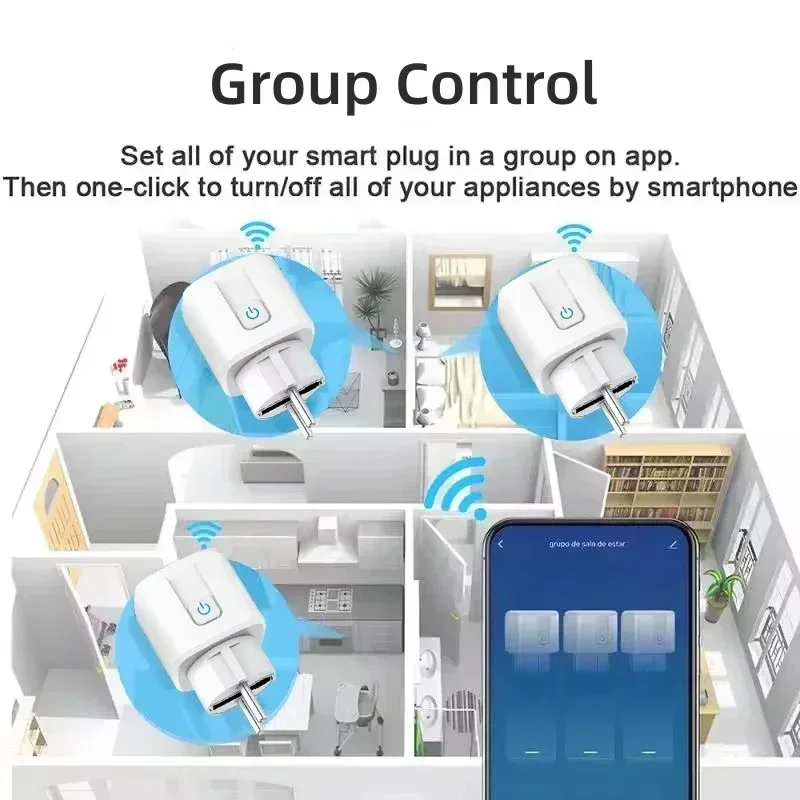
Mobile APP remote control, intelligent timing, intelligent scene linkage, power statistics, sharing control.
APP distribution network operation steps
A. One-button configuration
1. Please connect the mini-socket to the power supply and wait for the blue indicator light to flash, or press and hold the key for 5 seconds until the blue indicator light flashes (twice per second).
2. Connect the mobile phone to wifi and confirm the success.
3. Open the APP, click the Add icon in the upper right corner of the device list, and then select "Socket" to enter the interface of configuring devices.
4. Click "Please confirm that the indicator light is flashing", enter the password of the WIFI currently connected to the mobile phone, and click "Confirm".
5. Wait for the configuration. After the configuration is successful, click "Finish" to jump to the function interface of the socket.
2.AP configuration
AP configuration is a paving configuration method. If one-click configuration fails, AP configuration can be used. The method is as follows:
1. Press and hold the key for 5S, and the indicator light will flash slowly (on for 2 seconds and off for 2 seconds).
2. Open the APP, click the Add icon in the upper right corner of the device list, select "Socket" to enter the interface of configuring devices, and click.
"Compatibility Mode" enters the AP configuration interface.
3. Click "Please confirm that the indicator light is flashing slowly", enter the password of the WIFI currently connected to the mobile phone, and click "Confirm".
4. Click "Disconnect" to jump to the WIFI list interface, select SmartLife-XXXX and click "Connect".
5. Click the back button on the phone and wait for configuration. After successful configuration, click "Finish" to jump to the function interface of the socket. "
Product size: 50*50*84mm
Weight: 0.09kg
Input voltage: AC100-240V 50/60Hz.
WIFI standard: 2.4GHz 802.11 b/g/n g/n.
Indicator light: blue light indicator switch and distribution network
Shell material: PC+ABS fire rating V0
Working temperature: -20-50℃
Certification standard: CE/ROHS
Graffiti smart or smart life APP can be remotely controlled by mobile phone by connecting with WiFi router.
Support Alexa, Google Home, Tmall Elf Xiaoai and other intelligent voice control.
Mobile APP remote control, intelligent timing, intelligent scene linkage, power statistics, sharing control.
APP distribution network operation steps
A. One-button configuration
1. Please connect the mini-socket to the power supply and wait for the blue indicator light to flash, or press and hold the key for 5 seconds until the blue indicator light flashes (twice per second).
2. Connect the mobile phone to wifi and confirm the success.
3. Open the APP, click the Add icon in the upper right corner of the device list, and then select "Socket" to enter the interface of configuring devices.
4. Click "Please confirm that the indicator light is flashing", enter the password of the WIFI currently connected to the mobile phone, and click "Confirm".
5. Wait for the configuration. After the configuration is successful, click "Finish" to jump to the function interface of the socket.
2.AP configuration
AP configuration is a paving configuration method. If one-click configuration fails, AP configuration can be used. The method is as follows:
1. Press and hold the key for 5S, and the indicator light will flash slowly (on for 2 seconds and off for 2 seconds).
2. Open the APP, click the Add icon in the upper right corner of the device list, select "Socket" to enter the interface of configuring devices, and click.
"Compatibility Mode" enters the AP configuration interface.
3. Click "Please confirm that the indicator light is flashing slowly", enter the password of the WIFI currently connected to the mobile phone, and click "Confirm".
4. Click "Disconnect" to jump to the WIFI list interface, select SmartLife-XXXX and click "Connect".
5. Click the back button on the phone and wait for configuration. After successful configuration, click "Finish" to jump to the function interface of the socket. "